








Contents
Overview
Microsoft Teams provides organisations with a compelling route to cloud telephony. It offers a full enterprise telephony feature set. It integrates telephony with Microsoft’s must-have suite of Teams collaboration tools – instant messaging, video conferencing and file sharing. And it leverages Microsoft’s Azure cloud computing service, which runs across 140 data centres around the world and is used by more than half of all Fortune 500 companies.
But in order to deploy Teams telephony effectively, organisations must first make sure that their corporate network can provide the capacity and performance to deliver high quality, reliable audio on every phone call.
This whitepaper explains how corporate network performance can affect call quality, and lists the steps that organisations should take to prepare their network for Teams telephony.
Introduction
Microsoft Teams is highly regarded as a tool for both collaboration and communication. This is driving rapid growth in adoption – Microsoft has reported more than 320 million monthly active users. But in order for organizations to get the most out of Teams, their corporate network infrastructure (on which Teams runs) must be set up appropriately.
When Teams is being used for instant messaging or document sharing, the demands on an organisation’s corporate network are relatively small. But if Teams is being used as a cloud-based enterprise telephony solution, the network requirements are considerably greater. If the corporate network lacks an adequate level of capacity, or is prone to other performance issues, then users are likely to experience issues like distortion, delays and drop-out on their phone calls.
Before deploying Teams telephony, organisations should assess their network requirements for both capacity and quality to ensure that these are suitable. They should also configure their corporate network so that Teams calls are routed efficiently. Both actions are relatively straightforward and can be achieved with minimal investment, but they require an understanding of how calls are handled by Teams and how the process can be optimised.
Jitter and drop-out – how network issues can affect call quality
With traditional on-premises PBX phone systems, audio quality is rarely an issue. Calls are typically made using a desk phone or conference phone. These devices connect to an on-premises PBX via dedicated cabling or a voice VLAN (virtual local area network). Calls are then routed to a carrier over a dedicated connection such as a SIP trunk or ISDN circuit.
With Teams, calls are typically made from an IP phone, PC or mobile device with a data connection to the corporate network. When a voice call is routed over a data network, the sound is converted into pieces of data called “packets”. Packets are sent from one caller to the other at regular intervals, enabling a back and forth conversation. There’s not a lot of data in each packet, so they don’t require much network capacity.
But in order for each person to be able to hear the other clearly, these packets need to be delivered quickly and consistently – which means network performance must be adequate.
If network performance is not adequate, voice calls can be affected by problems such as “jitter” and “drop-out”. Symptoms include garbled audio, gaps in speech, or calls dropped altogether. These issues can be caused by packet loss, which occurs when data fails to make it to its intended destination. They can also be caused by excessive round-trip time (the length of time taken for signals to be sent and received). This is also known as latency.
These issues are sometimes caused by insufficient network capacity. However, the problem often lies elsewhere – in network quality – and so adding more bandwidth may not be the answer.
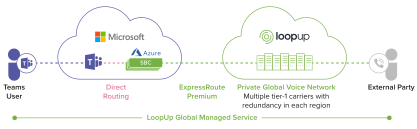
How Teams routes phone calls from one caller to another
In order to configure a corporate data network to support Teams telephony, it’s necessary to understand the journey that data packets take from one caller to another. The diagram above is an illustrative example of a Direct Routing solution for Teams telephony from a managed services provider (in this case, LoopUp). Note the “real” signalling and media paths are not shown as they vary from scenario to scenario.
The priority for the corporate network is to get data from the Teams user to the “virtual PBX” (in this instance, running in the Microsoft Azure cloud) while avoiding any packet loss and minimising the round-trip time. From the virtual PBX, the data is routed by the service provider over managed high quality networks, and so performance issues are avoided from that point on.
To get from the Teams user to the virtual PBX, calls often have to travel over the public internet from the corporate network to the Microsoft Azure cloud.
Consequently, both the performance of the corporate network itself, and the way it connects to the public internet, can affect call quality.
For this reason, deploying Teams telephony across an organisation is likely to be more complex than simply activating the functionality and setting up users.
Quality: Optimising network performance
There are several best practice steps that can be taken to optimise network quality, to ensure reliable real-time communications, unimpeded by those unacceptable lags and glitches that make calls and meetings so frustrating and inefficient or make them seem unprofessional to clients and contacts on the other end. To avoid packet loss and minimise round-trip time, organisations can configure their networks to:
1. Take the shortest route
There are three distinct legs that the data packets take from the user to their destination: the corporate network leg, the internet leg and crossing Microsoft’s network. If the length of these first two legs can be minimised then the data packets will arrive at Microsoft’s network faster, where they are no longer your responsibility.
Teams always attempts to send traffic by the shortest possible route. Organisations can help Teams to do this by incorporating local internet breakout points in their network infrastructure so that traffic can reach local entry points to Microsoft’s network – referred to as Azure Front Doors.
2. Bypass the bottlenecks
Taking the shortest route also means avoiding bottlenecks or diversions in the system. Often these can be caused by security tools that may not actually be required when it comes to Teams. Minimising the number of unnecessary gates that data has to go through can make a significant difference to quality.
For example, if users connect via Virtual Private Networks (VPNs), Teams traffic should be excluded from those VPNs. Teams data is already encrypted and can therefore go straight from the user to Microsoft safely.
For the same reason, Teams traffic should not be sent through a Proxy Server because it can add unnecessary processing time to the traffic and increase the number of hops required.
Similarly, Teams encryption means that SSL inspections for vetting web traffic is not supported, would be meaningless and so should be bypassed.
3. Put Teams traffic in the fast lane
Corporate networks can be configured to prioritise different types of data in the traffic flow – so Teams data can be given precedence over simple web-browsing traffic, for example.
Firewall settings may also need to be re-configured to open relevant ports/protocols to prevent Teams traffic from being blocked. Just because Teams calls might be succeeding in connecting, it does not mean that they are taking the most efficient path or using the best protocol.
4. Choose an ISP that peers directly with Microsoft
Some Internet Service Providers (ISPs) have direct “peering” with Microsoft. This means their network interconnects directly with Microsoft’s to provide fast, reliable exchange of data with optimal routing from the user to the Microsoft network. Microsoft peers with more than 2,500 ISPs globally.
Choosing an ISP with direct peering means traffic can be routed straight to Microsoft so that it arrives faster than other ISP traffic. This reduces latency and packet loss as well as the number of hops in the journey.
Quantity: Planning for capacity
In addition to optimising network quality, it’s also necessary to plan network capacity to ensure that there is sufficient bandwidth to cope with the number of users and their various needs.
Due diligence is required to understand the load that will be placed on the corporate network. This should include modelling the number of users and the volume and type of calls that they make.
It should also consider other demands on the network from activities such as backups. Demands on the network are likely to vary by location, and also at different times of the day and week.
Teams is great at using all available bandwidth to give users the best experience, and if there is not enough to sustain a high quality call, it is smart enough to reduce what it is using (always prioritising the audio portion of a call) to match what is available.
That’s good to know, but it’s not enough on its own – there’s more organisations can do to help themselves because just as with quality, capacity is a corporate network issue, rather than a Teams issue. Understanding, for instance, how many people are working remotely versus in the office, what proportion of users will use voice calls and video calls, or what the demand is to conduct full-scale meetings and presentations over Teams: all these things have a critical bearing on capacity requirements.
Microsoft provides some guidance and tools to help plan for capacity needs. One of these is the web-based Network Planner which can be found in the Teams Admin Centre (TAC). This tool uses information about the environment such as networks, locations, and types of users known as “personas” to help predict the required bandwidth.
“Personas” are a way to categorise users depending on how they use Teams. For example, a user in a warehouse that is only using Teams for PSTN dialling and audio calls on mobile would have different bandwidth needs than a sales director requiring full video, conference, audio and screen sharing might. These varying user types will therefore form two different “personas” to be taken into account when quantifying capacity requirements.
Checking the baseline network quality
Microsoft provides a set of metrics against which to evaluate a corporate network connection to check that it meets the minimum requirements for core quality, based on four key criteria:
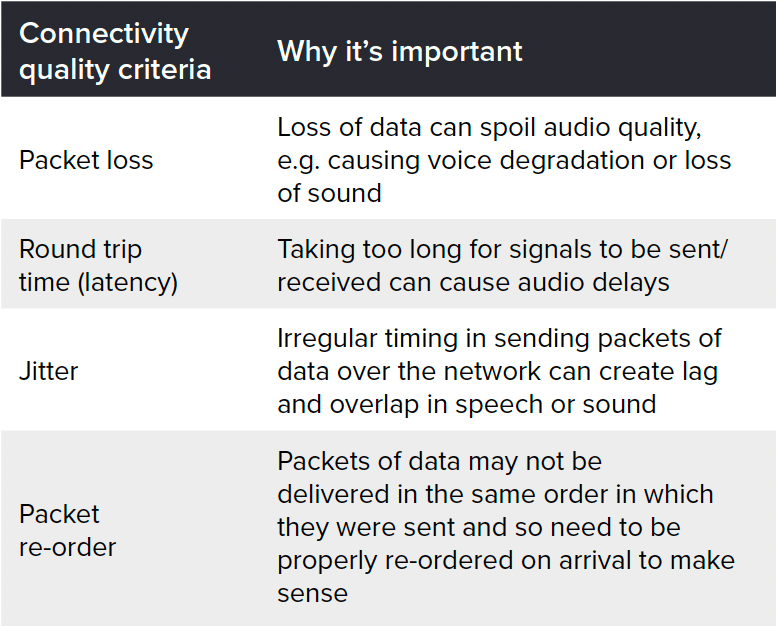
Microsoft also provides tools that organisations can run to help check the baseline network quality: the Network Assessment Tool for Microsoft Teams or the newer browser-based Office Connectivity checker. It is possible to test in two different ways: from a user’s computer or from a data centre location (where there is an assumption that some resources would be required across the internal network).
These tools provide a pass/fail analysis of these four areas from a data burst captured at a specific moment in time, which is useful as a means of gaining a rough idea of underlying network quality and spotting where potential problems might lie.
However, this insight is limited. It provides only a snapshot based on a very small sample size of audio data: it cannot represent real-world conditions over time. The tools are not designed to test the network at load or for prolonged periods, so they will not enable organisations to perform stress-testing or deliver visibility on data trends.
It is possible to automate testing so that the tools can be run on a loop and the data extracted to build up a more comprehensive picture of performance. This is not something that is offered as standard through Microsoft, but it is something that a managed service provider like LoopUp can advise on.
Moving forward
Using the tools that Microsoft offers to measure quality and capacity together will provide an indicator of whether the network is ready to move ahead with the Teams deployment, or if there are any immediate red flags such as connectivity issues that should be addressed prior to deployment.
It’s also vital to continue to review real-world call quality across all users at regular intervals. Network quality assurance tasks do not end with deployment – monitoring quality is an on-going process.
Microsoft has some excellent data here that can help. It has developed something called the “Call Quality Dashboard” (CQD) which show an overview of the quality of deployment broken down as needed, such as by region, site location, connectivity method and more.
The CQD enables organisations to see trends around quality across the entire user estate and identify weak areas where the user experience can be improved by addressing issues proactively and in a timely manner. Frequently carrying out a CQD review should become a routine method of proactively monitoring your deployment.
With the right knowledge and support, any problems should be straightforward to overcome, so that users can get the most from Teams telephony.
Summary
Teams telephony is a very powerful component of the Teams offering and one which many organisations will want to deploy as part of a seamless, holistic digital communications and collaboration service. But no matter how well Teams works, much rests on the quality of the corporate network through which it will be accessed. Adopting a “plug-and-play” approach may cause problems which could be avoided by proactive internal planning to configure network settings appropriately and identify early warning signs to ensure users get the best experience. Achieving the best quality Teams service is very much in an organisation’s own hands.