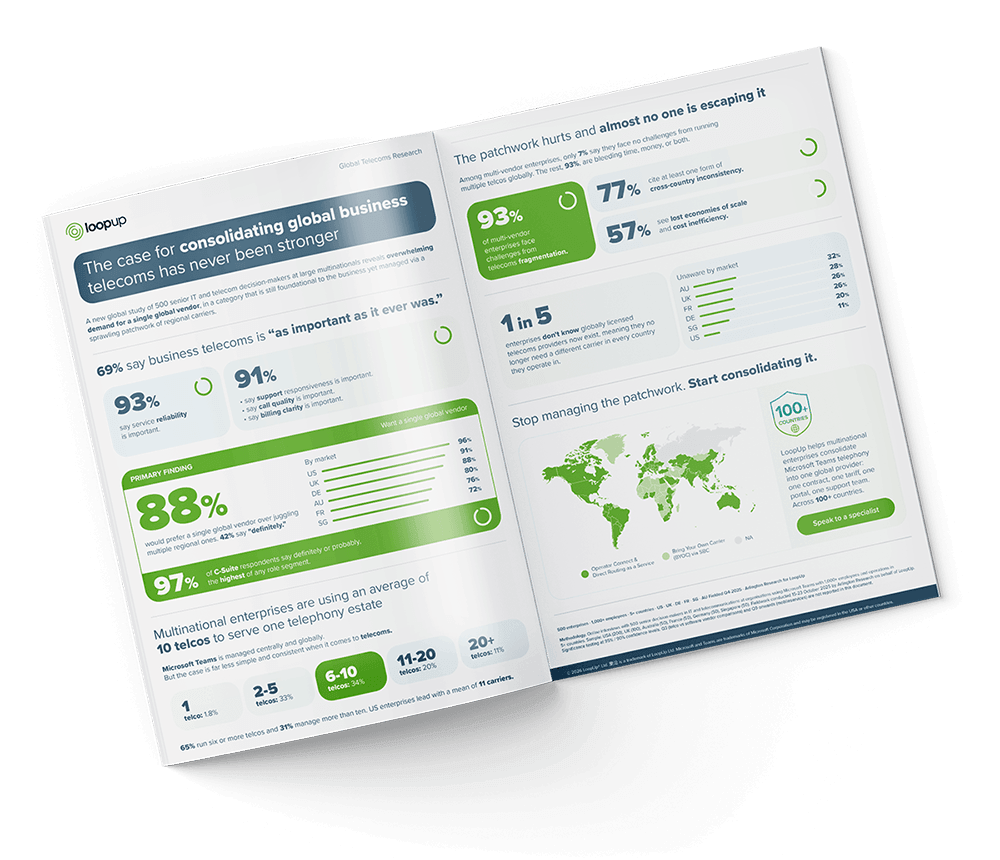









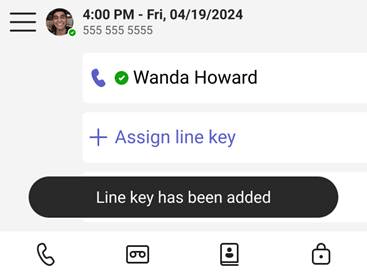
You can now configure line keys directly from the Teams Admin Center (TAC). This means admins can centrally manage how line keys behave across both Common Area Phones and personal certified Teams phones.
Line keys allow users to:
- Quickly access contacts
- Trigger call actions
- Improve call handling efficiency
The configuration experience is tailored to the device type and user role. Whether it’s a shared device in a reception area or a personal desk phone, you can customise the layout to suit the user’s needs.
This is configured by admins in TAC and is found under, Teams Devices > Phones > Configuration Profiles.
There are options to choose from vendor device profile templates, and this will show Teams Phone Devices and Side cars as well! You also can hide unused assigned keys, so they don’t fill up your screen/ side car.
Contact types you can assign are:
- Speed Dial
- Shared Line
- Call Queue
For more info on deployment and configuration, check out the official Microsoft documentation.
Zach Bennett is Microsoft Teams MVP and Principal Architect at LoopUp.
To comment view the article on LinkedIn.