








Microsoft Teams now allows admins to use Shifts scheduling groups as Call Queue groups. This is alongside the ability to use Teams Channels and individual Users & Groups. This means you can route calls only to agents who are actively on shift, opted-in, and available (if Presence-based routing is enabled). It’s a smart way to align call routing with real-time staffing.
What’s New?
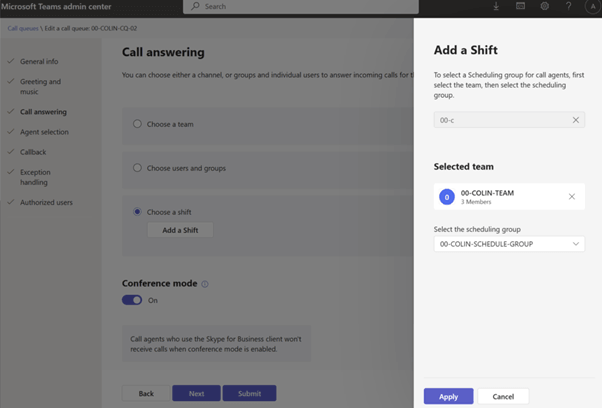
Once you’ve set up your scheduling groups and work shifts in the Shifts app, you can configure your Call Queues to reference that shift data. This is done in the Teams Admin Center by associating a Team and a scheduling group with your queue.
Only agents who meet all three conditions will receive calls:
- On shift
- Opted-in
- Available (if Presence-based routing is used)
Agents who are off shift, opted-out, or unavailable won’t be presented with calls. This gives you more control and flexibility over how calls are routed throughout the day.
Things to Keep in Mind
- Shift changes take 15 minutes to sync with the call queue.
- Agents may still receive calls for up to 15 minutes after being removed.
- Agents will only start receiving calls 15 minutes after being added.
- Shift activities, tags, notes, and colours are ignored.
- If your scheduling group has more than 200 members, only the first 200 EV-enabled members (alphabetically) will be added to the queue.
This is a great feature for organisations with rotating schedules, part-time staff, or teams that operate in shifts. It helps ensure that calls are routed to the right people at the right time, without manual intervention. Also if you’re already using Shifts this is a no brainer!
For more info, check out the official Microsoft documentation.
Zach Bennett is Microsoft Teams MVP and Principal Architect at LoopUp.
To comment view the article on LinkedIn.